Stale Flag Detection
Feature flags are meant to be temporary. When a rollout is complete or an experiment has ended, the flag should be removed from your code and from Flagsmith. In practice, flags accumulate — and each stale flag is another piece of dead code and configuration your team has to reason about.
Stale Flag Detection helps you keep on top of this by automatically tagging features that have not been changed in any environment for a configurable period of time. It works well alongside Code References to identify the flags most in need of cleanup.
How Flagsmith detects stale flags
A feature is considered stale when no change has been made to it in any environment for more than the threshold configured on the project (30 days by default).
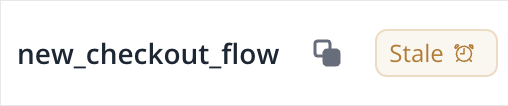
Stale features are automatically tagged with the Stale system tag — a project-scoped tag displayed with an alarm icon
and an orange colour.
Updating a feature does not remove the Stale tag on its own — once a feature has been flagged, you (or your
automation) decide what to do with it: clean it up, keep it, or exclude it from future detection. You can remove the tag
manually, but if the feature still meets the staleness criteria, Flagsmith will re-apply it on the next detection run.
To permanently opt a feature out, apply a permanent tag instead — see
Excluding flags from stale detection below.
Requirements
Stale Flag Detection is available on the Scale-up and Enterprise plans.
It also requires Feature Versioning to be enabled on at least one environment in the project. Stale detection uses the version history to determine when a feature was last changed, so features in projects without any versioned environments will not be tagged.
Configuring the threshold
The threshold is set per project.
- Go to Project Settings and open the General tab.
- Under Stale Flag Detection, set Mark as stale after to the number of days you want to use as the threshold.
- Click Update to save.
The default is 30 days. Choose a value that matches your team's release cadence — long enough to avoid noise on flags that are still in active use, short enough to surface abandoned flags before they pile up.
Excluding flags from stale detection
Some flags are meant to live for the lifetime of the application — kill switches, plan-gating flags, and other long-lived configuration. These should not be flagged as stale.
To exclude a feature, apply a permanent tag to it. A tag is permanent if it was created with the Is permanent? toggle enabled — the label you give the tag does not matter. Any feature carrying a permanent tag is excluded from stale detection and is also protected from accidental deletion.
You can enable the toggle when creating a new tag, or edit an existing tag to make it permanent. See Tagging for how to create and manage tags.
Working through stale flags
Stale Flag Detection surfaces the flags that need attention, but removing a flag safely still means finding every reference to it in your codebase. Combine it with:
- Code References — to locate every file and line where a stale flag is used, so you can remove it in a single PR.
- Flag Lifecycle — for guidance on when to remove short-lived flags versus keep long-lived ones.
A typical cleanup workflow: filter the Features list by the Stale tag, open each feature, use its Code References to
find the call sites, remove the flag from the codebase, then delete the flag in Flagsmith.